How I Improved Mobile PageSpeed from 67 to 84 – WordPress Optimization Step by Step
Introduction
You know that feeling? You create websites for clients, polish every detail, and then you look at your own site and… well. “I’ll fix it later”, “It works, kind of”, “I don’t have time right now”.
That was me for the past few months. Desktop looked great – 98/100 in PageSpeed. But mobile? 67/100. Ouch!
As someone who creates websites for others, I couldn’t ignore my own portfolio anymore. After all, my potential clients browse the web mainly on their phones too.
I decided to fix it. Here’s what I did.
Initial State - Reality Wasn't Pretty
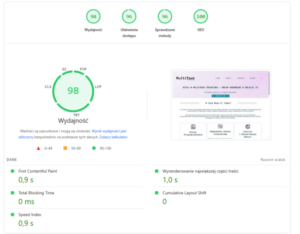
Mobile: 67/100
When I saw the details, my heart sank:
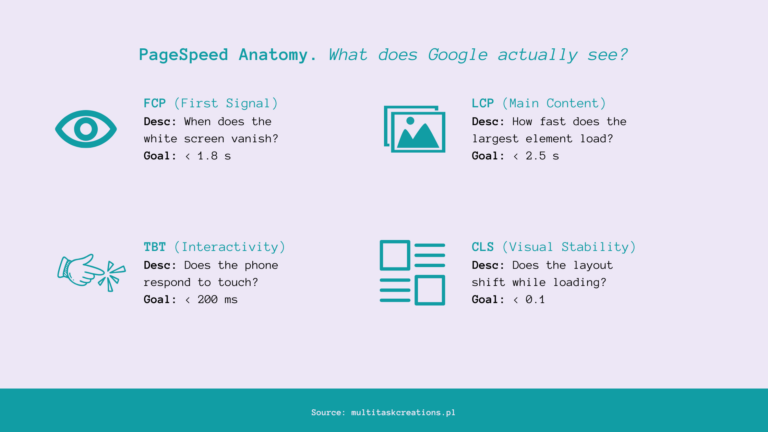
- First Contentful Paint: 4.2s (should be below 1.8s)
- Largest Contentful Paint: 5.8s (should be below 2.5s)
- Cumulative Layout Shift: 3.2s
That last one was the worst. CLS measures how much content “jumps” during loading. 3.2s meant users trying to click a button would suddenly see all content shift and click on who knows what.
Not what you want for a good website.
Step 1: Cache Replacement - From W3 Total Cache to WP Fastest Cache
I had W3 Total Cache installed, but… honestly, I never took the time to configure it properly. Tons of options, complex settings, and I just “enabled and forgot”. Result? Cache wasn’t really working as it should.
I decided to start fresh. Removed W3 Total Cache and installed WP Fastest Cache – a simpler plugin that “just works”.
WP Fastest Cache configuration is much clearer.
Enabled includes:
- Cache enabled (obviously!)
- HTML and CSS minification
- Combine CSS files
- Separate mobile cache (important!)
- Disable emojis
I didn’t enable:
- JavaScript minification – Elementor doesn’t like these experiments
- Combine JS – asking for trouble
Step 2: Kadence Has Hidden Treasures
I’ve been using Kadence Theme for a while, but only now did I look into the “Performance” section in theme settings.
Oh my, so many options!
(IMAGE 3: Kadence Performance settings screenshot)
I enabled:
- Optimized group block
- Local Google Fonts (faster plus GDPR compliant)
- Disable duplicate sitemap (Yoast already makes one)
Result: Score jumped to 86. Well, then it dropped to 82, then 84 again… PageSpeed has its moods and results fluctuate plus minus 5 points. That’s normal.
Step 3: Fixing CLS
The biggest problem on my site was CLS – 3.2 seconds of jumping content.
After some detective work, I found the culprit: Google review avatars. They had no defined dimensions, so the browser didn’t know how much space to reserve. Content loaded, then avatars, and boom – everything shifted.
Solution? Added a few lines of CSS in Appearance, Customize, Additional CSS:
.wprevpro_t1_IMG_4 { width: 50px; height: 50px; }
.wprevpro_t1_outer_div_0 { min-height: 250px; }
Result: CLS dropped from 3.2s to… 0. Zero. Perfect. That was worth it.
Step 4: Google Analytics - Do I Really Need This?
PageSpeed was screaming about 126 KB of unused JavaScript. Most of it was Google Analytics.
I asked myself: when did I last check GA? Can’t remember. I mainly use Google Search Console for basic stats.
I disabled GA through Complianz (I had configured it there once and… forgot):
- Settings, Complianz, Wizard
- “Do you use statistics?” – No
- Save
Result: Minus 75 KB JavaScript. Page loads noticeably faster.
Step 5: Plugin Cleanup - Less is More
I went through the plugin list and removed what I don’t use.
Most importantly: Akismet. Why do I need spam protection for comments when I don’t even have comments enabled?
Also removed one plugin I don’t even remember why I installed (probably some test, something didn’t work, it stayed).
Kept what I actually use: Polylang, UpdraftPlus and a few other essentials.
Results - It Was Worth It
BEFORE:
- Mobile: 67/100
- FCP: 4.2s
- LCP: 5.8s
- CLS: 3.2s (disaster!)
AFTER:
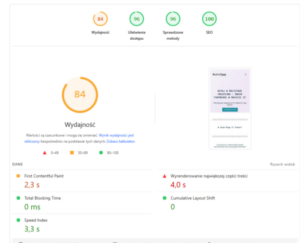
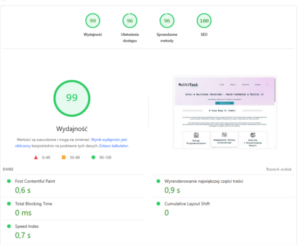
- Mobile: 79-84/100 (average around 82)
- FCP: 2.3s (45 percent better!)
- LCP: 4.0s (31 percent better!)
- CLS: 0 (perfect!)
Desktop remained at 98-99/100 (was already good).
What I Learned
- Website creators often forget about their own sites
We focus on client projects, leaving our own sites “for later”. Only when I finally sat down and dedicated some time did I realize how easy it was to improve.
- Cache is must-have, not nice-to-have
Plus 12 points for half an hour? That’s the best time investment in optimization. No discussion.
- CLS is a silent conversion killer
Users don’t say “hey, this site has high CLS”. They just get frustrated that content jumps around and… leave. Fixing this should be a priority.
- PageSpeed isn’t constant
Results fluctuated between 79 and 86. That’s normal. Don’t panic if one test shows 82 and the next 84. The trend matters, not a single result.
- 84/100 is great for WordPress
Especially with Elementor and full functionality. You don’t need 100/100 – 80 plus is already very good.
Checklist - If You Want to Optimize Your Site
Before starting:
- Make a backup
- Update everything (plugins, theme, WordPress)
- Run PageSpeed test and save the result
Basic optimization:
- Check if your cache is working properly (maybe worth changing plugin?)
- Review performance options in your theme
- Find and fix elements causing CLS
- Review tracking scripts – maybe disable something?
- Plugin cleanup – remove unused ones
- Delete cache and test multiple times
Verification:
- Site looks OK? (open in incognito)
- Everything works? (forms, menu, etc.)
- Test on real phone
Summary
From 67 to 84 points in Mobile PageSpeed. CLS from 3.2s to 0. Site loads faster, looks better, users are happy.
Is it perfection? No. Is it enough? Absolutely.
Sometimes the best strategy is simply sitting down and taking care of your own site. Because while I create sites for others, mine deserves attention too.
And now I have a site I’m not ashamed to show. And that’s probably the most important thing.
Need help optimizing your WordPress site? Contact me!