A company with a critical Excel/VBA system · IT / data records
Everyone in IT knows systems like this. They have worked for years, they are critical to the company, and inside they look like the mechanism of a Swiss watch – every cell, formula and macro tied together by a web of thousands of dependencies. Everyone knows they work, but no one dares to touch them, because one wrong move could break everything.
And then a client shows up with a seemingly simple task: “Please expand this system. We want to add 1,100 new fields to the existing 400.” It was a vehicle registration system built on Excel and VBA – over 60 files, each with 50 sheets and hundreds of unique references. Open-heart surgery, without disturbing the rhythm.
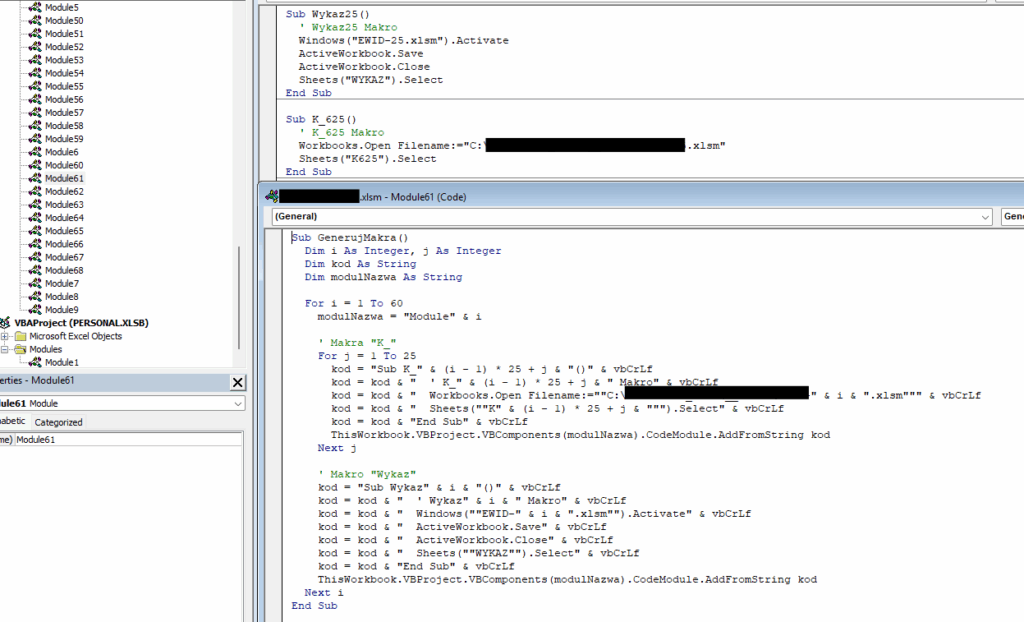
In projects like this, revolution is the fast track to disaster – so I chose evolution. Instead of touching the existing code, I wrote new macros to support the expansion. Instead of manually changing thousands of formulas, I built a mechanism that generated new references only for the added fields – leaving the old system untouched.
Part of the work was tedious and repetitive, like creating dozens of new files. That is where automation came in – small, clever VBA bots did the drudgery for me, minimising the risk of error:
' Prosty automat, który generował dla mnie 35 nowych plików,
' tworząc idealną kopię z nowym numerem seryjnym.
Sub Utworz26_60()
    For numer = 26 To 60
        Set staryPlik = Workbooks.Open(sciezkaFolderu & "Plik_danych-" & (numer - 1) & ".xlsm")
        staryPlik.SaveCopyAs sciezkaFolderu & "Plik_danych-" & numer & ".xlsm"
        Set nowyPlik = Workbooks.Open(sciezkaFolderu & "Plik danych-" & numer & ".xlsm")
        nowyPlik.Sheets("Nr Karty").Range("A5").Value = "Plik_danych-" & numer
    Next numer
End Sub
Every change was rolled out iteratively, tested and backed up. Slow, precise work – but only that guaranteed the safety of the whole system.
The patient survived and is doing great. The numbers speak for themselves:
Even the most “untouchable” systems can be developed. The key is not bravado, but respect for the existing architecture and the caution that lets you add the new while keeping the soul of the original.
The challenge The app had grown alongside the business for a year and a half. It started as a clever Google Sheet with a few scripts…
The challenge A large B2B client had many different forms on the site – some for contact, others for webinars, still others…
The challenge The first version of this site was born out of courage. I wrote about it separately – about the perfectionism that…
Just tell me what you need - it does not have to be technical, that is my job. I will get back to you and tell you straight whether and how I can help.