“The site works, the score is green on desktop, and on mobile, it’s 74. It’s fine, clients aren’t complaining.”
Sound familiar? For many website owners, a score of 74/100 on mobile devices is where the work ends. Especially if the site is visually “heavy” – full of project photos, sliders, and built with Elementor.
That was exactly the case with my partner’s website – https://stepbud-budownictwo.pl/. The site was running “raw” – without any caching plugin. A score of 74 points on mobile seemed decent for zero optimization, but I felt potential was being wasted. The lack of caching meant that with every visit, the server had to build the page from scratch, which took ages on slower connections (e.g., at a construction site).
I decided to change that. The goal: break the 90-point barrier using free tools, but configuring them… unconventionally.
The result? A leap from a solid 74 to an outstanding 92 points on mobile.
Why Elementor? A Conscious Choice, Not an Accident
Before I get into the technical “nitty-gritty,” I need to clarify one thing. Why did we choose Elementor at all, given its reputation for being “heavy”?
The answer is simple: Economics and Purpose.
This is a classic portfolio site. There are no complex stores or booking systems here. It’s meant to showcase projects and build trust. In this case, Elementor was the best solution for three reasons:
-
Time: The site was built in a flash.
-
Budget: The client didn’t have to pay for hours of a developer coding everything from scratch (“by hand”).
-
Flexibility: Changing the layout or adding new photos is just a matter of “drag and drop.”
I knew that by choosing a page builder, I was taking on some “technical debt” (heavier code). But I also knew that this debt could be paid off with good optimization.
Diagnosis: What Was Holding the Site Back?
The baseline numbers weren’t tragic, but the audit revealed several brakes:
-
Desktop: 95/100 (No issues).
-
Mobile: 74/100 (Decent, but unstable).
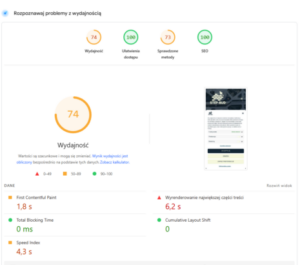
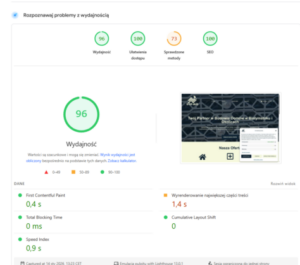
Main problems:
-
No Cache: The server was “churning” code with every visit, resulting in delays of around 4 seconds (TTFB).
-
Layout Shifts (CLS): An external Google Reviews widget was shifting the screen while loading.
-
Images: They were loaded in a standard way, engaging the PHP processor.
Time to optimize.
Step 1: Installing Cache and the “Select All” Trap
I installed the free version of the WP Fastest Cache plugin. Most people make a mistake at this point: they go into settings and check everything blindly (“if it speeds things up, I’ll turn it on”).
I did it differently. I knew that on mobile devices, “more doesn’t mean faster.”
My Hybrid Strategy:
✅ Combine CSS: ENABLED. Instead of a dozen small style files, we serve one.
❌ Combine JS: DISABLED!
Why didn’t I combine JS? Merging all scripts into one giant file (often weighing over 1 MB) causes the phone’s processor to download and process it entirely before displaying the page. This blocks the screen. Leaving JS files separate allowed the browser to load them in parallel.
Warning – The Trap! In the settings section, I UNCHECKED the “Mobile” option. In the free version of this plugin, checking this option paradoxically disables caching for phones!
Step 2: Elementor and Kadence – Hidden “Turbo”
Instead of installing more plugins, I looked under the hood of Elementor itself and the Kadence theme. It turns out many performance features were disabled.
I went to Elementor > Settings > Features and changed:
-
Inline Font Icons: Active. Elementor converts the few icons used into lightweight SVG code instead of loading the entire Font Awesome library.
-
Font Swap: Text appears immediately, without waiting for the decorative font to load.
In the Kadence theme, I enabled local Google Fonts loading and Preload CSS.
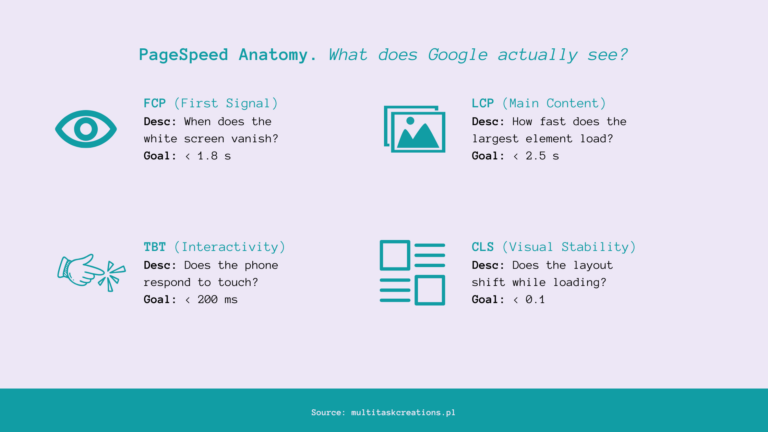
Understanding PageSpeed (Infographic)
Before we get to the “Game Changer,” it’s worth understanding what we are actually measuring and why some metrics are more important than others.
Step 3: Fighting Layout Shifts (Fix CLS)
The 74-point score was dragged down by CLS (Cumulative Layout Shift). The culprit was the Google Maps reviews widget. Client avatars were loading without dimensions, causing text to “jump” during loading.
I added a simple CSS code imposing rigid frames on them (width: 50px). The result? Shifts dropped to zero. The site is rock solid.
Wynik 74 punktów był zaniżany przez tzw. CLS (przesunięcia układu). Winowajcą był widget opinii z Google Maps. Avatary klientów ładowały się bez wymiarów, przez co tekst „rozjeżdżał się” w trakcie wczytywania.
Dodałam w CSS prosty kod narzucający im sztywne ramy (width: 50px). Efekt? Przesunięcia spadły do zera. Strona jest stabilna jak skała.
Step 4: The “Game Changer” – Jump from 79 to 92 Points!
This was the breakthrough moment. After implementing the above changes, I was stuck at 79/100. The report was still complaining about image caching.
I use the Converter for Media plugin for WebP format. It turned out it was defaulting to Passthru (via PHP) mode. What does that mean? Every image display engaged the server processor, delaying loading.
The Solution: In the plugin settings, I changed the serving mode to: “via .htaccess”. Thanks to this, the browser downloads images directly from the disk, bypassing PHP.
The Result: An instant shot from 79 to 92 points! 🚀
Pro Tip: The “Cold Cache” Trap
Finally, a lesson worth remembering. You clear the cache, run a test, and… the result is worse than before optimization, and server time is 5 seconds!
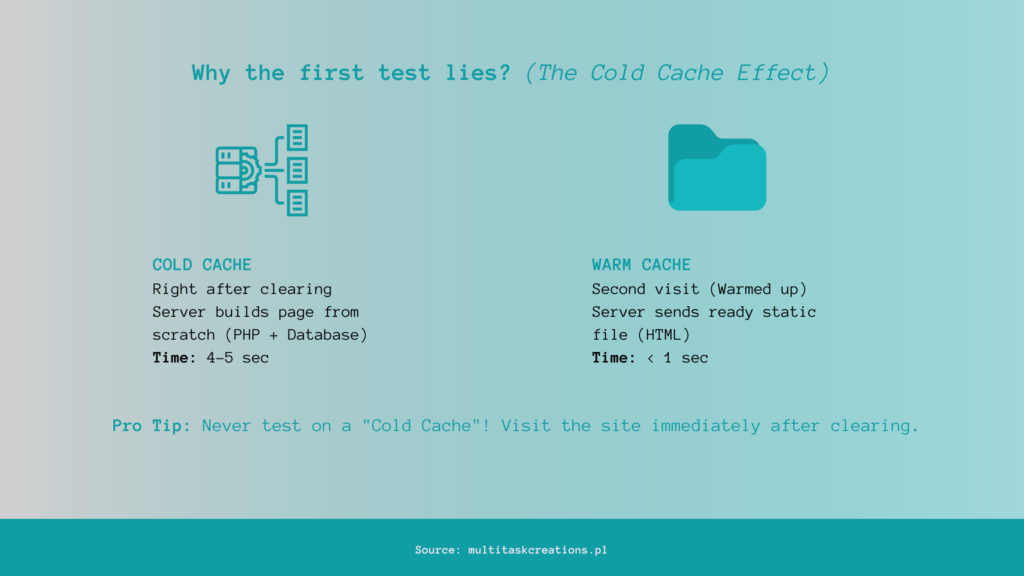
This is normal. After clearing the plugin, the site “doesn’t exist” in a static version. The first user (or Google bot) visiting it forces the server to work hard.
The Rule: After every cache clear, visit the site in Incognito mode and scroll through it. “Warm up” the server. Only then run your tests.
Summary of Results
AFTER:
-
Desktop: 97/100
-
Mobile: 92/100
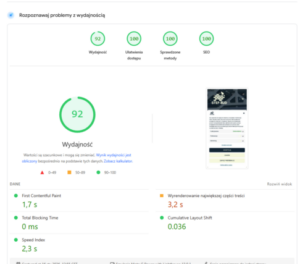
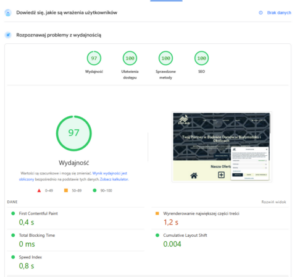
It turns out you can have a “heavy” Elementor site and a score above 90 points. The key isn’t expensive plugins, but conscious configuration of free ones and understanding how the server works.
Want to Repeat This Result? (Free Checklist)
I prepared a condensed PDF checklist for you with all the settings I wrote about. You can print it out and always have it on hand when optimizing.
Important Note: Remember that every WordPress site is different (different server, theme, plugins). This is a configuration that worked perfectly in my case (Elementor + Kadence). You might need to, for example, enable JS combination. Treat this list as a proven starting point, not an ironclad rule. And always backup before changes!